CodexBar: Token Limits in Your Menu Bar (Codex, Claude, Gemini & Co.)
Table of Contents
2026 is a great year to build: with Codex, Claude, Gemini (and what feels like a new tool every month), you have more power on your desk than ever before.
And at the same time it is an incredibly frustrating year to build.
Not because of the models, but because of the reality around them: limits, tokens, credits, session windows, weekly caps, and reset timers.
We build with models, but we build within budgets.
I have been using CodexBar for about a week. It is still a bit buggy in a few places, but it is incredibly helpful, especially because it does not try to be “yet another chat” and instead solves a different problem:
How do I keep track of when I can still work and when I have to wait again?
And yes: I manage to hit the limits of my OpenAI, Gemini, and Claude subscriptions regularly. Especially during longer coding sessions for my own tools or projects, it happens faster than you would think. And then you sit there and wait until tokens (or credits) reset.
What is CodexBar?
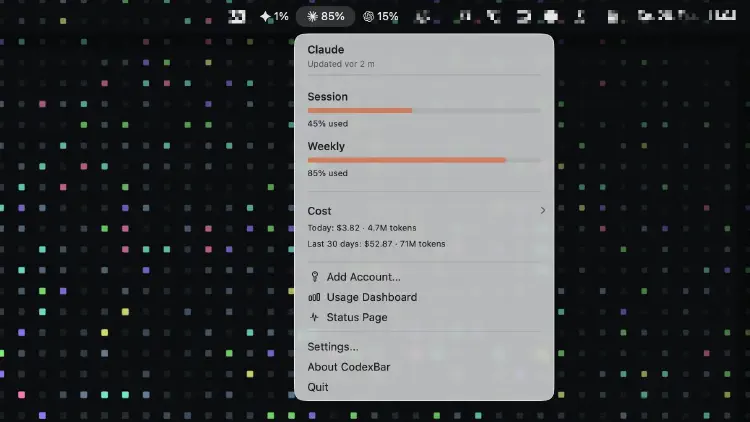
CodexBar is a small macOS menu bar app that makes your usage and limit info visible: per provider, with reset times.
The project is Open Source (MIT) and free.
Behind it is Peter Steinberger (GitHub: steipete). If the name rings a bell from the current OpenClaw hype (formerly Clawdbot/Moltbot): yes, the same developer. In mid-February 2026, Steinberger joined OpenAI. That is part of why the project is so visible right now.
And it fits narratively: OpenClaw is an autonomous agent notorious for burning huge amounts of tokens (and therefore money) in longer runs. A tiny “instrument cluster” like CodexBar suddenly makes a lot of sense.
The idea is deceptively simple: instead of clicking through three dashboards (or opening a usage page mid-flow), you see your limits right in the menu bar.
The UI is intentionally minimal:
- No Dock icon.
- A status item per provider (or an optional “merge icons” mode).
- A small icon with two bars: session on top, week on the bottom (where available), including a reset countdown.
And if you prefer your instrument cluster as a small dashboard: CodexBar also ships native macOS widgets (WidgetKit) that mirror the “Menu Card Snapshot” (Notification Center or desktop).
Why this suddenly matters
If you only send a prompt once in a while, none of this matters.
But if you actually build, meaning you spend 2 to 3 hours on a topic, refactor, test, step back, try again, then “rate limit management” becomes part of daily life.
And that is the sneaky part: limits do not just kick you out of flow, they destroy context.
It becomes more tangible with numbers: if your session window (for example “5 hours” in Claude) suddenly runs dry, or you have already burned most of your weekly limit, you often only notice when it is too late.
And this is not just about time limits in Pro subscriptions. If you work heavily with APIs, your limit is often simply money. Burning $50 in an afternoon “by accident” happens faster than you would think. Especially since the OpenClaw hype, when many devs blew their budgets in January/February 2026 because an agent ran overnight without supervision.
You are in the middle of it, the architecture is in your head, tests are running, you need one more clean solution. And then:
Limit reached.
CodexBar does not change that. It does not give you tokens. But it gives you what matters in that moment: predictability.
- Should I start another run now, or is it better to wait 10 minutes?
- Is the session empty, but weekly still available?
- Which provider is usable right now if I am flexible?
The menu bar is great for that. But what if you need your limits (or costs) right in the terminal, for example for scripts or CI/CD?
The built-in CLI (for power users)
CodexBar is not just a menu bar app. It also comes with its own CLI, so you can query limits and costs from the terminal (handy for scripts or CI/CD):
codexbar status
codexbar cost --provider claude
Which providers are supported?
The focus originally leaned heavily toward Codex and Claude, but CodexBar supports much more now. Depending on the provider, limits are pulled via local CLIs, OAuth, or (optionally) via browser cookies.
Supported providers include:
- Codex
- Claude Code
- Gemini
- Cursor
- GitHub Copilot
- Antigravity
- Droid (Factory)
- and more (depending on version/setup)
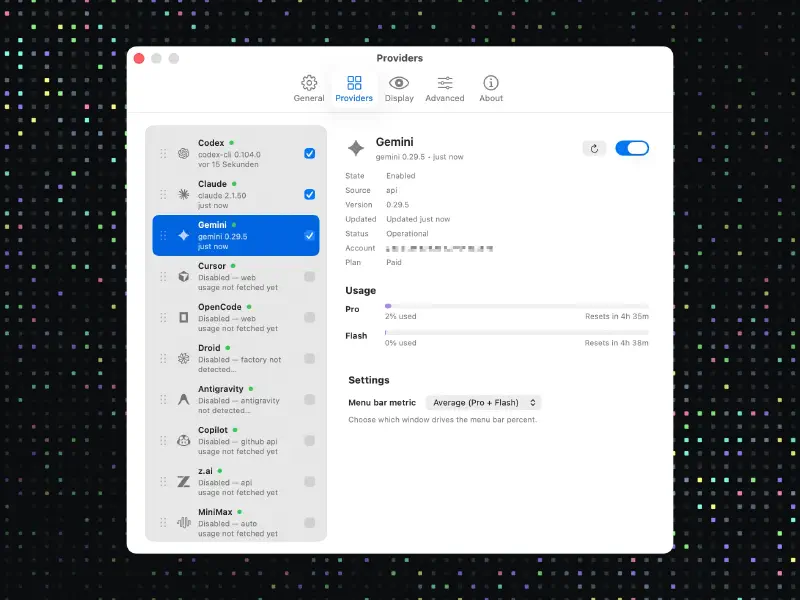
Important: you do not have to enable everything. On the contrary, the tool works best when you only turn on the providers you actually use.
Privacy and permissions (worth taking seriously)
When you read “menu bar app that pulls my usage”, the alarm bells go off for a lot of people, and rightly so.
CodexBar tries to handle this cleanly:
- By default, parsing happens on device.
- It stores no passwords.
- For some providers it can reuse existing browser cookies (opt-in) to enrich dashboard info.
- If cookies are missing or you do not want to use them, it falls back (depending on provider) to CLI info.
On macOS it is also important to understand why certain prompts show up (Full Disk Access, Keychain, Files and Folders). That is not automatically “suspicious”, but something you should decide consciously. Ideally with a quick look at the docs and the project’s issues.
In particular, Full Disk Access often raises eyebrows. The reason is usually simple: CodexBar needs it only if you enable the cookie integration (opt-in), so it can read local cookie databases from Safari/Chrome. Many provider dashboards (for example Claude Web) do not offer an official usage API. If that feels too sensitive: skip cookies and stick to CLI/OAuth sources.
Similar story with the Keychain: the prompts typically happen because CodexBar needs local secrets, for example to decrypt Chrome cookies via “Chrome Safe Storage” or to read OAuth/CLI credentials (depending on provider).
Installation (short and practical)
CodexBar runs on macOS 14+.
If you do not use Homebrew, you can install CodexBar the classic way as a .dmg via the website or the GitHub releases. With Homebrew it is:
brew install --cask codexbar
After the first launch:
- Open Settings
- Enable the providers you use
- If needed: install and log into the relevant CLIs, or configure cookie integration
FAQ
Is CodexBar free?
I am on Windows. Is there an alternative?
Why does CodexBar need Full Disk Access?
Why does macOS keep asking for Keychain access?
Are there widgets?
Can I use CodexBar from the terminal?
codexbar status or codexbar cost --provider claude.My take after a week (bugs and all)
What I really like:
- You get an instrument cluster for your AI tools.
- You see reset times instantly, without context switching.
- It reduces those unnecessary “do I wait now, or can I still do something?” moments.
What is not perfect for me yet:
- Sometimes values are briefly stale, or a provider hiccups.
- Depending on your setup, cookies and permissions on macOS can be a minefield (not because of CodexBar, but because macOS is strict and inconsistent here).
Still, the value outweighs it massively. Especially if you, like me, hit limits regularly.
Conclusion
CodexBar is not “yet another AI client”. It is a small utility for a very modern reality: we build with models, but we build within budgets.
If you never hit limits, you do not need it. But if you regularly do long coding sessions and use multiple providers in parallel, CodexBar quickly becomes one of those tools you do not want to miss.
Sources and further reading
Until next time, Joe