Sophos Firewall Configuration Viewer: Audit and Compare Configs
Table of Contents
Hello everyone,
if you have ever managed a Sophos Firewall in a real business environment, you know the dilemma: the configuration is the “single source of truth”. But the moment you want to review it outside the web UI, document it properly, or compare before/after a change, it gets painful fast.
Yes, you can take screenshots. Yes, you can export individual rules. But as soon as you are dealing with bigger changes (WAN migration, new VLANs, object cleanup, restructuring NAT logic, “just quickly” adjusting a few VPNs), you really want two things:
- A configuration that is readable.
- A comparison that is not “diff XML and cry”.
That is exactly where the Sophos Firewall Configuration Viewer comes in.
This tool does not take responsibility away from you. You still need to design a clean configuration and test changes properly. But it does remove something that wastes an absurd amount of time in day-to-day operations: the format problem. It turns an export that is technically correct but miserable to read into a view you can actually work with.
And yes, I am picky about this. When I plan a change, I do not just want to know that something changed. I want to know what exactly changed, and whether I accidentally touched some object, NAT rule, or VPN setting on the side. The viewer is a surprisingly pragmatic helper for exactly that.
What is the Sophos Firewall Configuration Viewer?
The Sophos Firewall Configuration Viewer is a browser-based tool that converts Sophos Firewall configurations into a human-readable format. You can use it to:
- filter, sort, and search the configuration
- search for specific objects/hosts/FQDNs and find where they are referenced
- compare two configurations (Added/Modified/Removed)
- export results as an HTML report
Important: this is a standalone tool you simply open in a browser. There is nothing to install, and you can use it from basically any admin laptop. That is a big reason why I like it: it fits into existing workflows without friction.
Under the hood, it works with what Sophos already gives you: the configuration export as XML (typically Entities.xml). The difference is the presentation. Instead of staring at XML structures, you get a view that feels more like well-organized documentation.
And it is not just “view”. In practice, three capabilities keep coming up:
- Read: a structured view of the config, filterable.
- Search/References: find objects and see where they are used.
- Compare: before/after or Firewall A vs Firewall B.
The most important part for security and privacy: Sophos emphasizes that the data is processed locally in your browser and nothing is “uploaded”. Parsing, analysis, and report generation are meant to stay on your device.
You can access the tool here: Sophos Firewall Configuration Viewer
If you prefer a quick walkthrough first, here is the TechVid from Sophos:
A Real-World SMB Scenario
Friday, 3:30 pm. A company with about 80 employees: a new internet connection, new public IPs, and in parallel a small project (new CRM, new subnets). The change request is written properly: which NAT rules, which VPN endpoints, and which firewall rules need to be adjusted.
In reality, you get what you always get:
- An object like
WAN_Public_IPsis referenced by three NAT rules, two business application rules, and one “historic” WAF rule that nobody has looked at in ages. - A SaaS FQDN object was added to a group at some point and now shows up in ten rules, but only two of them are still relevant.
- You want to clean up, but you do not want the Monday morning call: “Since the change, X is broken.”
That is where the Configuration Viewer saves real time.
My typical workflow in these situations:
- Export before (save a baseline)
- Implement the change
- Export after
- Run a diff in the viewer and attach the HTML to the ticket
- Before deleting objects: use Usage Reference to verify where they are actually used
This is not just convenient. It makes changes traceable. And that is exactly what audits, internal approvals, and your future self want.
How to Use the Tool in Practice
1) Export the configuration (Full or Selective)
Export directly from the firewall:
- WebAdmin: Backup & Firmware > Import / Export
- Export either Export full configuration (everything) or Export selective configuration (specific areas, optionally with “Include dependent entity”)
Sophos generates the configuration as a .tar file which you download.
A few details that matter in practice:
- Full export is my default for change management (baseline/diff). You get everything and you are less likely to miss dependencies.
- Selective export is great when you want to review a specific area (for example only interfaces + routing) or when you need to share something with third parties (ISP/vendor) and want to minimize what you disclose.
- Include dependent entity is often critical for selective exports: if you export firewall rules, you usually want the referenced network/service objects as well. Otherwise the export becomes incomplete and you lose context.
Pro tip for comparisons: for “Compare”, always export two configurations with the same selection (Full vs Full, or Selective vs Selective with identical checkboxes). If you compare Full against Selective, the diff will look dramatic but is mostly useless.
2) Extract the TAR and find Entities.xml
From the .tar, extract the Entities.xml file (depending on the export it may also be named entities.xml).
On macOS/Linux:
tar -xvf backup.tar
ls -la
On Windows, you can do this with tools like 7-Zip.
If you (like me) want to avoid these backups rotting in your Downloads folder, create a temporary working directory. Example on macOS/Linux:
WORKDIR="$(mktemp -d)"
tar -xvf backup.tar -C "$WORKDIR"
ls -la "$WORKDIR"
At the end, you can delete the directory again. Sounds basic, but this is exactly the kind of hygiene that prevents sensitive configs from sitting around for weeks.
For your security radar: according to Sophos documentation, an export without sensitive content (for example only interfaces) often contains only Entities.xml. Once sensitive information is included (for example users), the TAR can additionally contain files like hashFile.json and propertyfile.
In practice that means: treat the entire TAR as confidential.
3) Make a configuration “human-readable”
In the viewer, choose “Single configuration” (or similar) and upload the Entities.xml. You will get a rendered view of the configuration.
Depending on the size of the configuration, loading takes a few seconds. After that you get something I often miss in the web UI: a “documentation view” of the config, without clicking through countless menus.
What I like most: you can filter aggressively on the left. If your change is about routing/NAT, you do not want to scroll through every report setting, logging toggle, and side feature. You simply enable the sections you care about right now.
Typical filter combinations in real life:
- firewall rules + NAT only
- interfaces + routing only
- VPN only
When I audit or take over an environment for the first time, I usually work through it in this order:
- Interfaces/zones (what is inside, what is outside?)
- Routing/SD-WAN (how does traffic leave, where do return routes come from?)
- NAT (what is published, what is rewritten?)
- Firewall rules (which flows are actually allowed?)
- VPN (site-to-site and remote access, depending on the setup)
This is not the only valid order, but it prevents you from judging rules without understanding the underlying topology.
And if you need something for documentation or approval: you can export an HTML report at any time.
I like using that as a “review package”: export HTML, attach it to the change ticket (or store it internally in a secure documentation folder), and somebody else can review the configuration without needing access to the firewall. That is extremely helpful for four-eyes reviews, internal approvals, or external audits.
4) Usage Reference: “Where is this object actually used?”
This is the killer feature for me.
Sophos configs rely heavily on objects: hosts, networks, services, FQDNs, groups. That is great because you can reuse things cleanly. The downside: after a couple of years, it is often not obvious where an object is referenced.
And that is exactly where the classic mistakes happen:
- someone deletes an object “because it looks old” and only later discovers it was still used in a NAT rule
- someone changes an object (for example expands an IP range) and unintentionally changes multiple policies at once
Usage Reference in the viewer makes these dependencies visible. Instead of searching the web UI “by feel”, you use the search/Usage Reference to discover where an object or hostname is referenced.
Example from the TechVid: search for box and you immediately see which policies/NAT rules reference the FQDN object.
The nice part is the click-through flow: you jump from the search directly to the object and then see the references (for example which firewall policy or NAT rule uses it). When I do a cleanup change, I often export this view as HTML and attach it to the ticket. Later it is clear why I deleted or changed an object.
Perfect for:
- cleanup (remove old objects)
- change planning (which rules really need adjustments)
- troubleshooting (why is a rule still matching somewhere?)
5) Compare two configurations (Before/After)
On the landing page you can choose “Compare” instead of “View” and upload two Entities.xml files.
It sounds simple, but it is a powerful pattern. I use it for example for:
- before/after of changes (my classic)
- comparing test/staging against production to find drift
- validation after migrations (new WAN, new NAT logic, new VPN)
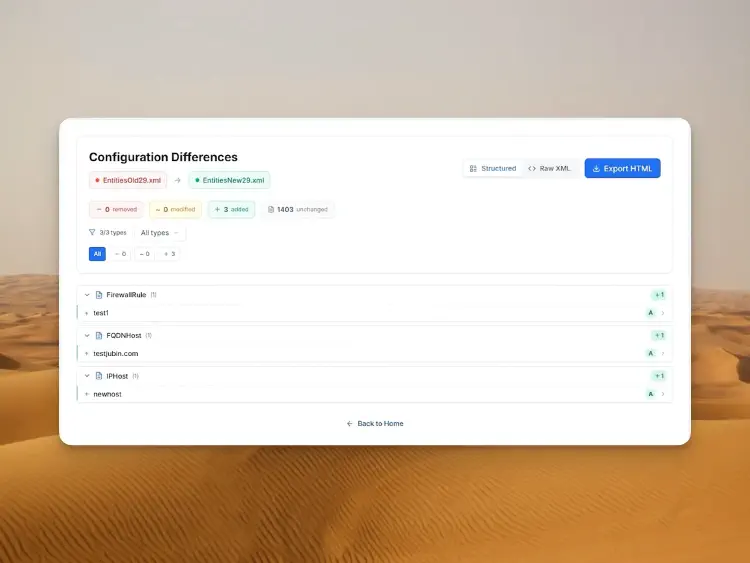
What I like about the compare mode: it is not just a raw text diff. It tries to group changes in a meaningful way. You do not just get “some XML is different”, you get: this object was added, that rule was modified, this entry was removed.
That is exactly what you want for change management:
- summary: what was removed, modified, added?
- details per object/rule
- optional raw XML side-by-side
- HTML export for ticket/audit
My personal workflow is pretty blunt (but effective):
- Read the summary: do the magnitudes make sense? (for example “I changed 3 rules” vs “somehow 200 objects modified”)
- Drill into the critical areas: interfaces/WAN, routing, NAT, VPN, firewall rules
- Save the HTML export while everything is still fresh
Especially step 1 reduces stress for me. If I see that only the expected objects are affected, I sleep much better on the weekend.
If you build the habit of saving a before/after diff for bigger changes, you will make your life significantly easier long-term.
Features in Detail
Up to this point, the tool is already useful. But after using it a few times, you realize: the viewer is less “nice to have” and more a small toolbox for typical admin questions. Here are the features I actually use a lot, with a bit more detail.
Human-Readable View: finally without the UI click marathon
In the Sophos web UI, settings are often logically grouped, but spread across many pages. For quick work, that is fine. For audits or change planning, it is exhausting because you keep losing context.
The viewer turns it into a compact representation. I use it for a quick reality check:
- Which interfaces/zones actually exist?
- Which NAT rules publish which services?
- Which rules are broad because in the past “it had to work”?
This does not replace clean design, but it makes visible how the firewall is described in the end.
Filters: focus on what matters right now
The filters on the left look simple, but in practice they are gold. Most changes are not about the whole configuration, but about a specific area (WAN, NAT, VPN, routing).
If I am onboarding a new internet connection, I hide everything and focus on:
- interfaces/WAN
- routing/SD-WAN
- NAT
- firewall rules (for the affected flows)
That sounds trivial, but it prevents you from getting stuck in side quests during a review.
Search: from “box” to “10.20.30.0/24”
Search is a great entry point if you come from operations and only have a signal:
- “Our service to box.com stopped working”
- “The new branch network 10.20.30.0/24 has no access”
- “Why is SMTP even open?”
You search by name, IP, FQDN, or object, and you get to the relevant spot quickly.
Usage Reference: see impact (before it hurts)
Usage Reference is the function that most often decides whether a cleanup is “brave” or “responsible”. I mainly use it for three cases:
- Delete objects: first check whether it is referenced anywhere.
- Change objects: first check how many rules/policies would be affected indirectly.
- Plan changes: first check which rules are actually tied to the same object.
If you do this consistently, the number of “oh wow, that was still connected to this” moments drops massively.
Compare + HTML export: my default for change management
Compare mode is my “proof” that a change happened the way it was intended.
Most of the time I do it like this:
- Export before
- Export after
- Compare
- Save the HTML diff and attach it to the ticket
It looks pedantic, but it costs a few minutes and can save hours of discussion later when someone asks what exactly changed. For teams, it is also a great review format: you can ask someone to read the HTML diff and double-check only the critical points.
Security: what’s good, where the limits are
1) Privacy-first is great, but not an excuse for carelessness
Sophos stating that nothing is shared out of your browser is a big plus, especially for configuration data.
Still: a firewall configuration is almost always sensitive. Even if no passwords are stored in cleartext, it typically contains:
- internal networks, VLANs, IP schemes
- NAT definitions and public endpoints
- VPN topologies
- object groups (often more revealing than you think)
2) The export is the real risk
The viewer helps you read. But the risk usually happens before and after:
- during download of the TAR
- during extraction
- when saving/sharing HTML reports
Sophos explicitly documents that exports containing sensitive information can include additional files, and that the secure storage master key topic matters for imports.
My day-to-day advice:
- keep export files short-lived locally (and clean them up afterwards)
- do not drop reports into “open” ticket systems
- if you work with third parties: prefer selective exports and share only what is necessary
3) SSH/Advanced Shell: the viewer only shows what is in the export
Something that happens more often in real environments than people admit: during an incident, someone logs in via SSH and “quickly fixes something” in the Advanced Shell.
The important part is not whether such a fix survives the next reboot or not. The important part is: if something does not make it into the export (Entities.xml), it is invisible in the viewer. And that can happen with Advanced-Shell/SSH adjustments, because they do not always show up as “normal” configuration in the export.
If you touch things via SSH/Advanced Shell, document it separately and plan to represent it properly via the WebAdmin configuration. Otherwise the next restore, HA failover, or firmware update is when it bites you, or you simply miss it in the diff.
4) Practical rules that help in production
- Use a browser profile without a wild zoo of extensions for tasks like this.
- Store TAR/HTML only where you would store other confidential configs.
- If you must share something: export minimally (selective) and think about dependencies.
Final Thoughts
The Sophos Firewall Configuration Viewer is not a feature that makes headlines. But honestly: tools like this are what keep your back free in day-to-day operations.
Over the years I have seen enough configurations where the real stress was not “technology”, but traceability: what changed when? Is this object really unused? Did we accidentally touch something else while doing the change? In the web UI you can find a lot, but it is rarely fast. And reading XML exports directly is something nobody does voluntarily for more than five minutes.
The viewer closes that gap quite well. I can read a configuration calmly, treat it like documentation, filter for what I need, check references, and finally save an HTML diff. That may sound “nice”, but in teams it is a real lever: reviews get easier, audits get less painful, and you get fewer surprises on Monday morning.
If you take away only one thing: build a small reflex.
Before bigger changes: export once, after the change export again, run Compare, and archive the HTML diff. It costs a few minutes, but it is one of the most reliable ways to fight “I think we only changed X.”
And as always: the viewer makes configs more readable, but not automatically more secure. The thinking is still on you. It just finally gives you a tool that is not working against you.
If you have ever done “quick and dirty” config tweaks via SSH in the Advanced Shell: keep in mind that those do not necessarily show up in backups - and then they will not be visible in the viewer either.
Sources and further reading
- Sophos Community: Sophos Firewall Configuration Viewer
- Sophos Blog (EN): Sophos Firewall Configuration Viewer
- Tool: Sophos Firewall Configuration Viewer
- YouTube: Sophos Firewall Configuration Viewer (TechVid)
- Sophos Docs: Import/Export (TAR, Entities.xml, sensitive content)
- Sophos Docs: Secure storage master key
- Sophos Docs: Device management / Advanced Shell (backup note)
Until next time,
Joe